How to check if the app block is active
Written By Floris de Vries
Last updated 4 months ago
What does “active” mean
The app block is active when:
the bulk order form is enabled in the app, and
the app block is added and saved in your theme.
Both are required.
Step 1: Check the status in the app dashboard (recommended)
Go to your Shopify admin.
Open Apps.
Open B2B & Wholesale.
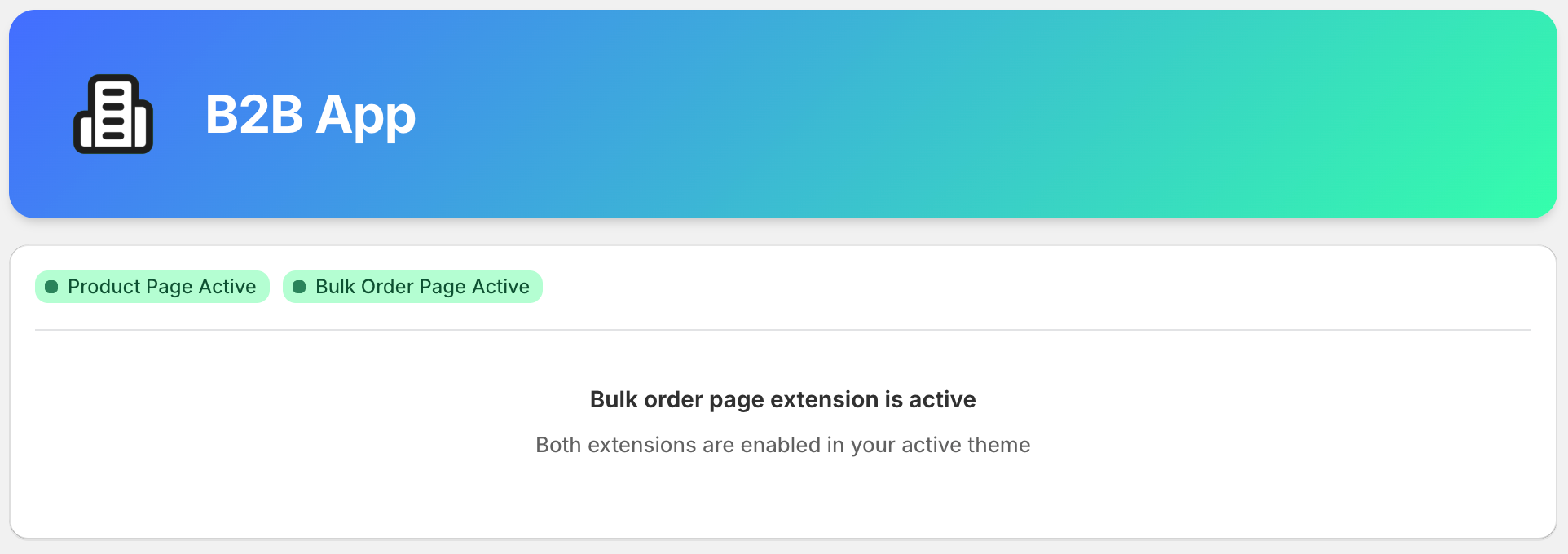
Look at the status indicators at the top of the dashboard.
You may see:
Product Page Active
Bulk Order Page Active
Step 2: If an extension is not active
If you do not see an active status:
The extension is not added to your theme, or
The changes were not saved in the theme editor.
In that case, follow:
Step 3: (Optional) Verify in the theme editor
Use this step only if the dashboard shows an unexpected status.
Go to Online Store → Themes.
Click Edit theme next to your active theme.
Open the page where the extension should appear.
Check if the app block is present and enabled.
Click Save if needed.
Expected result
The dashboard shows the extension as Active.
The bulk order form is visible on the storefront.
Common issues
The extension is added but the theme was not saved.
The extension is added to a non-active theme.
The bulk order form is turned off in the app.
The page exists but the wrong template is used.