How to add the extension to the product page
Written By Floris de Vries
Last updated 8 months ago
What is the product page extension
The product page extension displays the bulk order form directly on product pages, allowing customers to place bulk orders from a product detail page.
Step 1: Open the theme editor
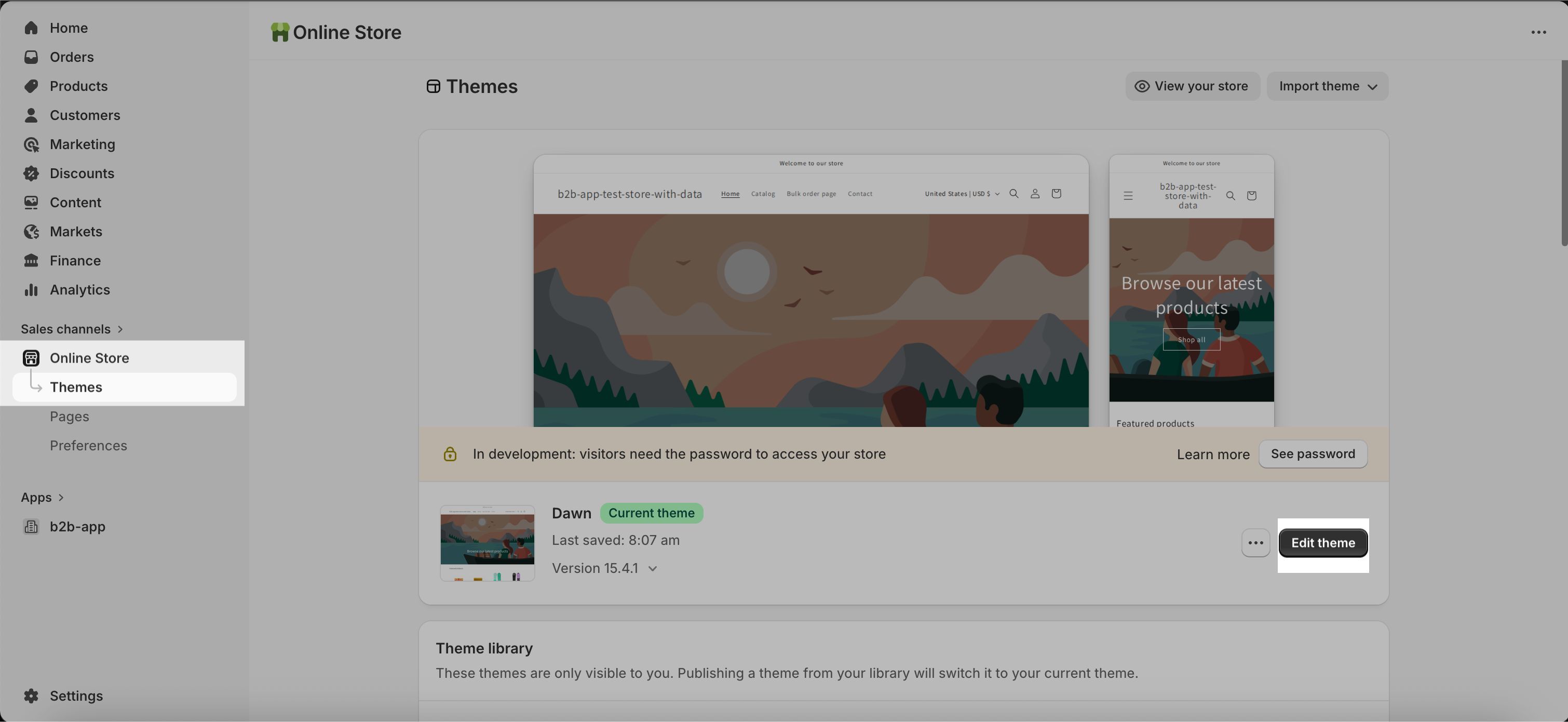
Go to Online Store → Themes in your Shopify admin.
Click Edit theme next to your active theme.
Step 2: Open a product page template
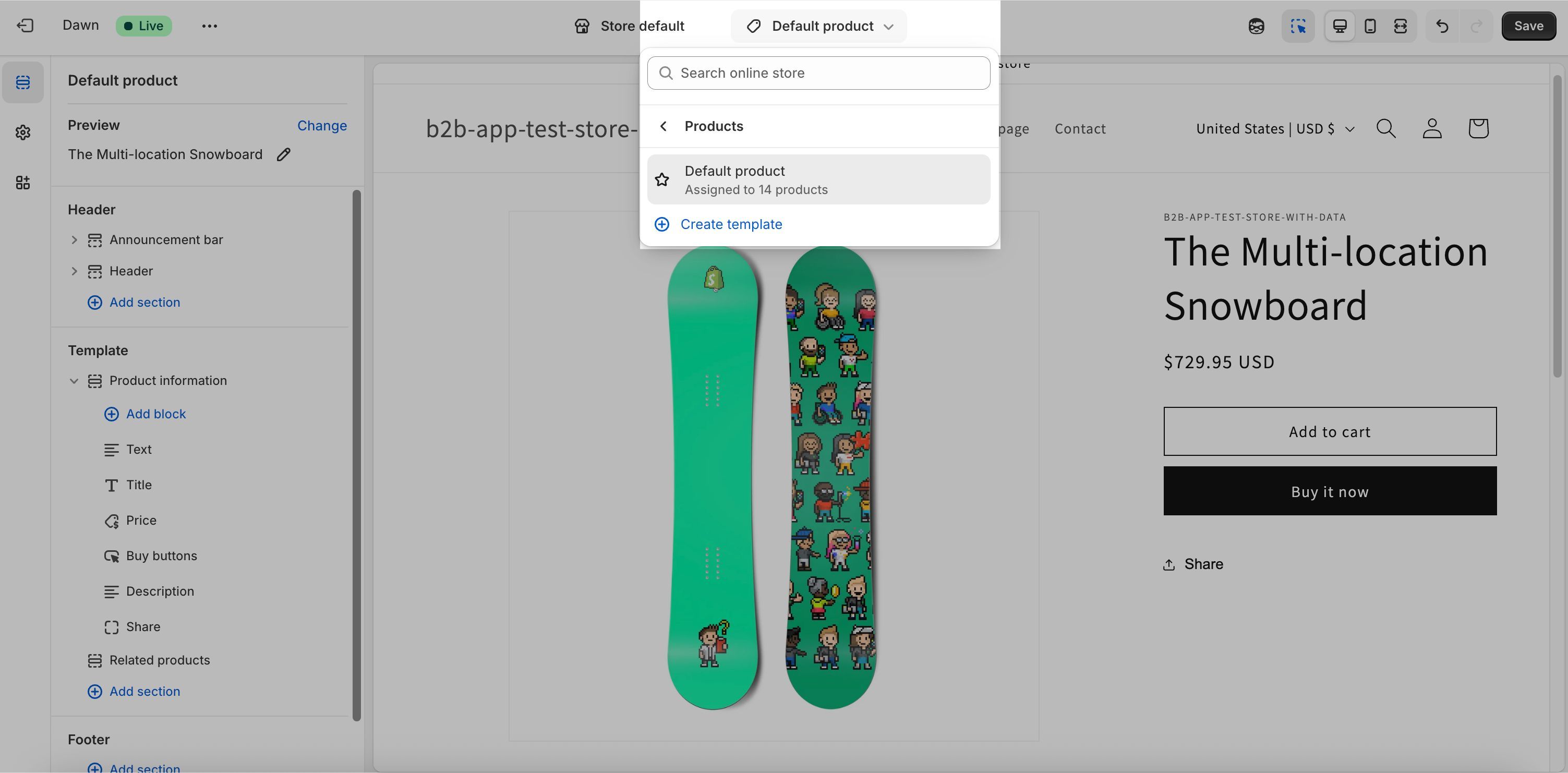
In the theme editor preview, open a product page:
Click on a product in the preview, or
Use the page selector to choose a product template.
Step 3: Add the product page extension
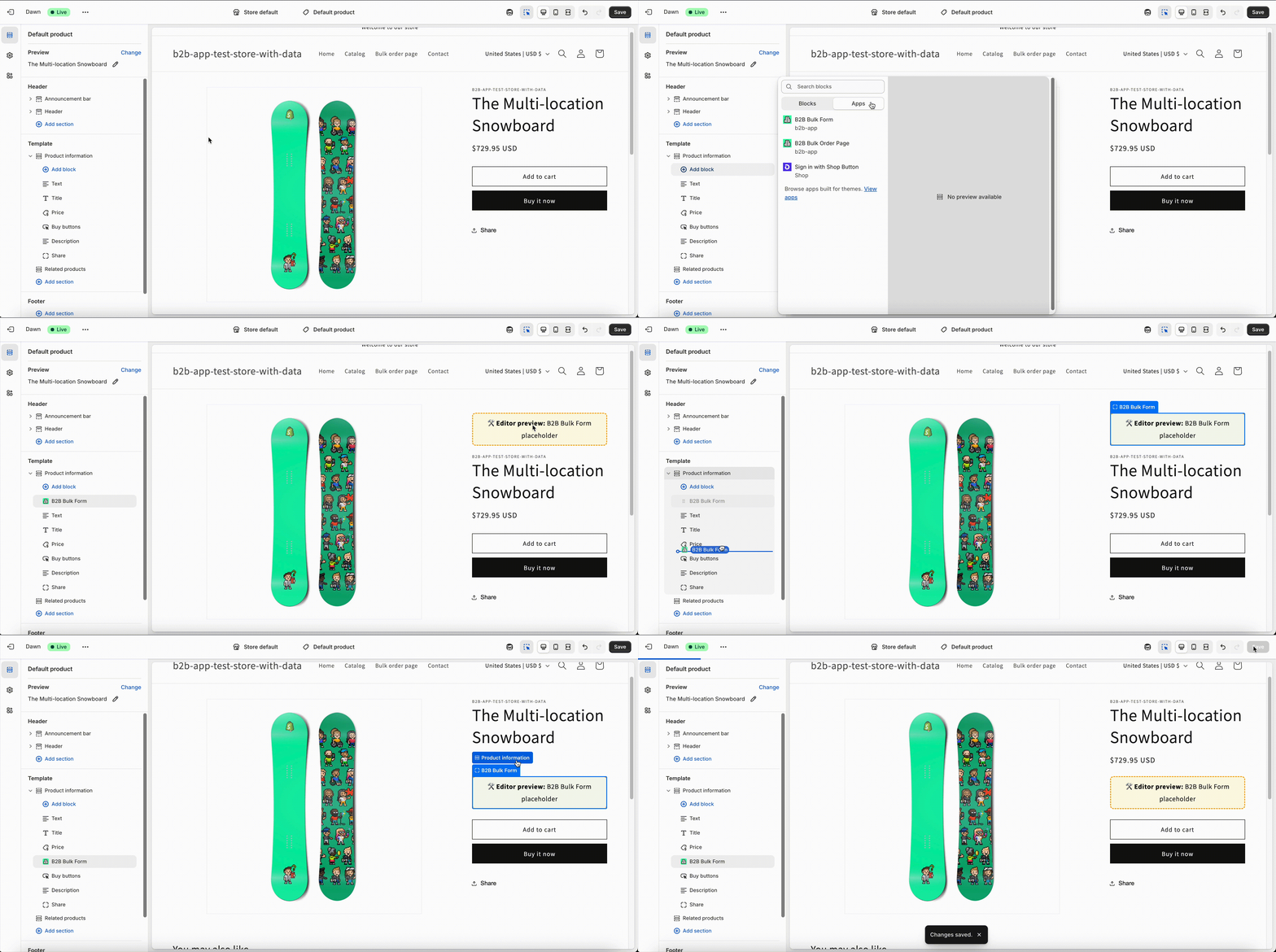
In the left sidebar, click Add block.
Open the Apps section.
Select B2B Bulk Form.
Drag the block to the desired position (for example, below the product form).
Click Save.
Step 4: Verify the installation
Open a product page in your storefront.
Check if the bulk order form is visible.
Test selecting products and adding them to the form.
Expected result
The bulk order form appears on product pages.
Customers can place bulk orders directly from the product page.
Common mistakes
Adding the block to the wrong page type.
Forgetting to save the theme.
The bulk order form is turned off in the app.
The customer does not meet the visibility requirements.