Step 2 – Add the App to a Cart Drawer (Code Required)
Written By Floris de Vries
Last updated 8 months ago
If your store uses a cart drawer, follow the steps below carefully.
Step 2.1 – Open your theme code
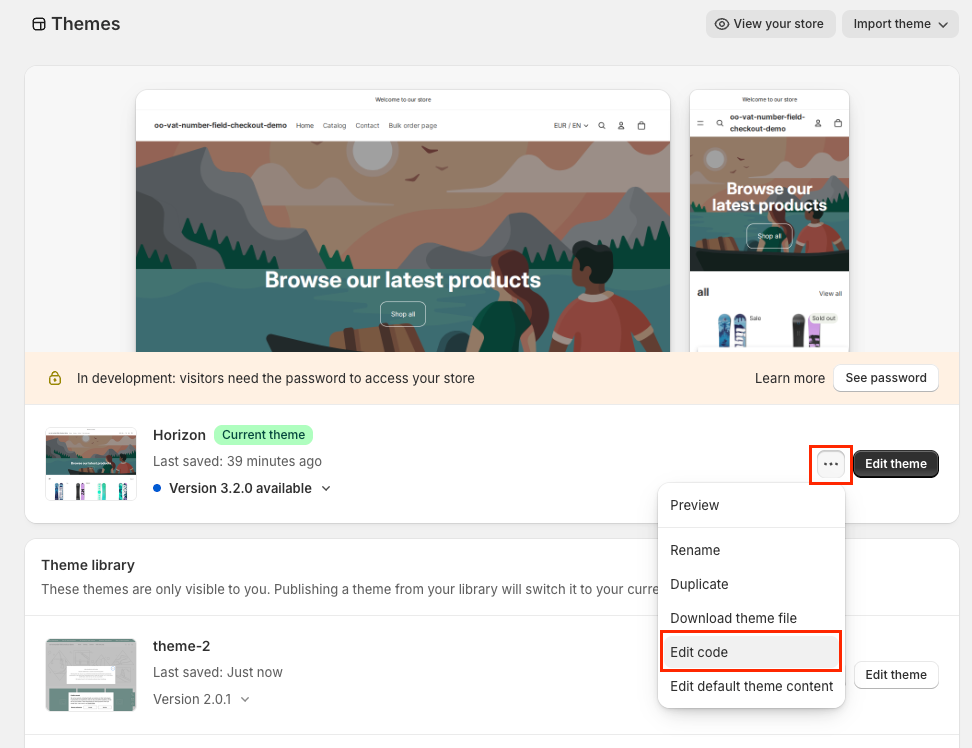
Go to Online Store → Themes
Click the three dots (…) next to your active theme
Select Edit code
Step 2.2 – Locate your cart drawer file
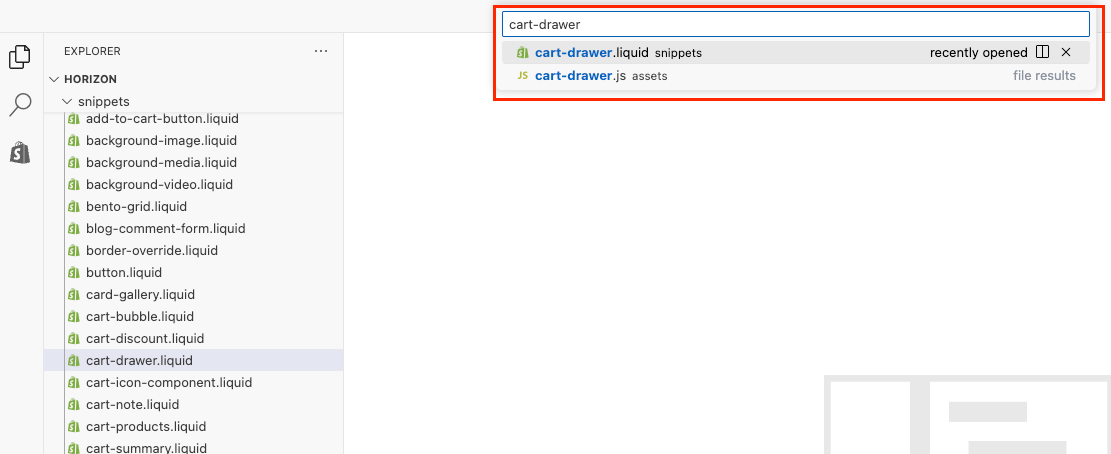
In the code editor, look for the file that controls your cart drawer.
Common file names include:
cart-drawer.liquiddrawer-cart.liquidmini-cart.liquidcart-notification.liquid
📌 Tip
Use the search function (Ctrl/Cmd + P) and search for “cart” inside the Snippets or Sections folders.
Step 2.3 – Insert the app container
Add the following code snippet where you want the VAT validation form to appear (usually near the cart totals or checkout button):
<div id="ooTaxExemption"></div> This element acts as the mount point for the VAT validation form.
Step 2.4 – Save and test
Click Save
Open your storefront
Add a product to the cart
Open the cart drawer
Confirm the VAT validation form appears
Very important – Theme Editor block is still required
⚠️ The code snippet alone is not enough
Even when using a cart drawer, you must also add the app via the Theme Editor:
Go to Online Store → Themes → Customize
Open the Apps section
Add OO – EU Tax Exemption
The Theme Editor block loads the app logic.
The <div id="ooTaxExemption"></div> only controls where the form appears.
Without both:
The form will not render
VAT validation will not work
Common mistakes
❌ Adding the app only via Theme Editor
→ Cart drawer will stay empty
❌ Adding only the code snippet
→ App logic will not load
❌ Adding the snippet in the wrong file
→ Form does not appear
Quick checklist
✅ App added via Theme Editor
✅ <div id="ooTaxExemption"></div> added in cart drawer file
✅ Tested with product in cart
If all three are correct, the VAT form should appear and work as expected.