Linking Products & Variants to Calculators
Written By Floris de Vries
Last updated 8 months ago
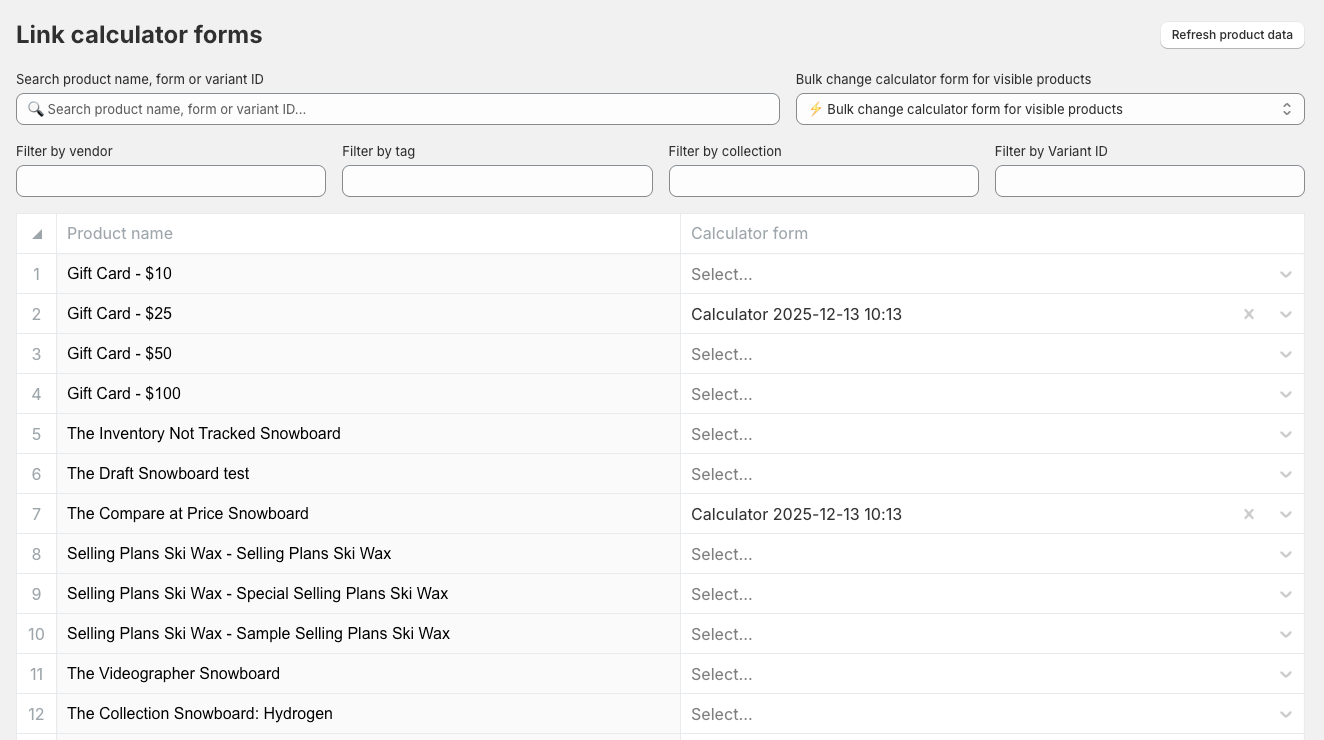
The Link calculator forms page is used to connect calculators to Shopify product variants. This determines which calculator is shown on the product page and allows you to manage calculator assignments at scale.
Calculators are always assigned at variant level.
If a product has only one variant, the calculator is automatically applied to that variant.
Each variant can be linked to one calculator at a time.
How linking works
Calculators are assigned per variant
If a calculator is linked, it will be displayed on the product page for that variant
If no calculator is linked, the product behaves normally without a calculator
Changes apply immediately after saving
This setup ensures precise control over pricing and logic per variant.
Product list overview
The table shows all products in your store, including their variants.
For each row, you can see:
Product name
Calculator form – the calculator currently linked to the variant
You can link, change, or remove calculators directly from this list.
Linking a calculator to a variant
To link a calculator:
Locate the product or variant in the list
Open the Calculator form dropdown
Select the calculator you want to assign
Once selected, the calculator becomes active for that specific variant.
For products with only one variant, this effectively applies the calculator to the product.
Removing a calculator
To remove a calculator from a variant:
Open the Calculator form dropdown
Click the remove (×) icon
The variant will no longer display a calculator.
Variant-level behavior
When a product has multiple variants:
Each variant can have its own calculator
The active calculator updates automatically when the customer switches variants
This allows different pricing logic, fields, or formulas per variant
This makes variant-level calculator assignment ideal for products with size-, material-, or option-based pricing differences.
Refresh product data
Use Refresh product data to sync the latest products and variants from Shopify.
This is useful when:
New products or variants were added
Product or variant data was updated
Variants are missing from the list
💡 Tip:
Always refresh product data after large catalog changes to ensure all variants are available.