Custom CSS
Written By Floris de Vries
Last updated 7 months ago
You can add custom CSS to visually adjust the calculator so it matches your store’s theme. The CSS can be entered in the app settings and will automatically be applied on the storefront.
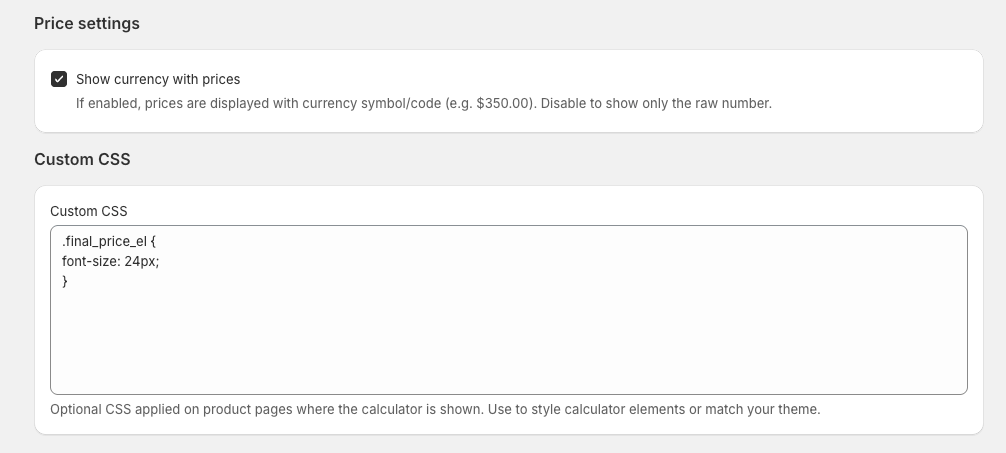
How It Works
Any CSS you enter is automatically:
Scoped to the calculator container
All selectors are restricted to:#calculator-form-containerThis ensures your custom styles only affect the calculator and do not impact other parts of the theme.
Automatically enhanced with
!important
To prevent theme styles from overriding your custom styling, every CSS declaration is automatically appended with!important.
This guarantees that your custom styling takes precedence within the calculator.
Example
If you enter:
.button { background: red; color: white; } It will internally be transformed into:
#calculator-form-container .button { background: red !important; color: white !important; } You do not need to add !important yourself or manually include the container selector.
Media Queries Support
Media queries are preserved and will continue to work as expected.
Example:
@media (max-width: 768px) { .button { font-size: 14px; } } This will correctly apply within the calculator context.
Important Notes
Do not include
<style>tags — only plain CSS.Avoid global selectors like
body,html, or*.Custom CSS only affects the calculator component.