How to create a bulk order page
Written By Floris de Vries
Last updated 8 months ago
What is the bulk order page
A bulk order page is a dedicated page where customers can place bulk orders using the bulk order form.
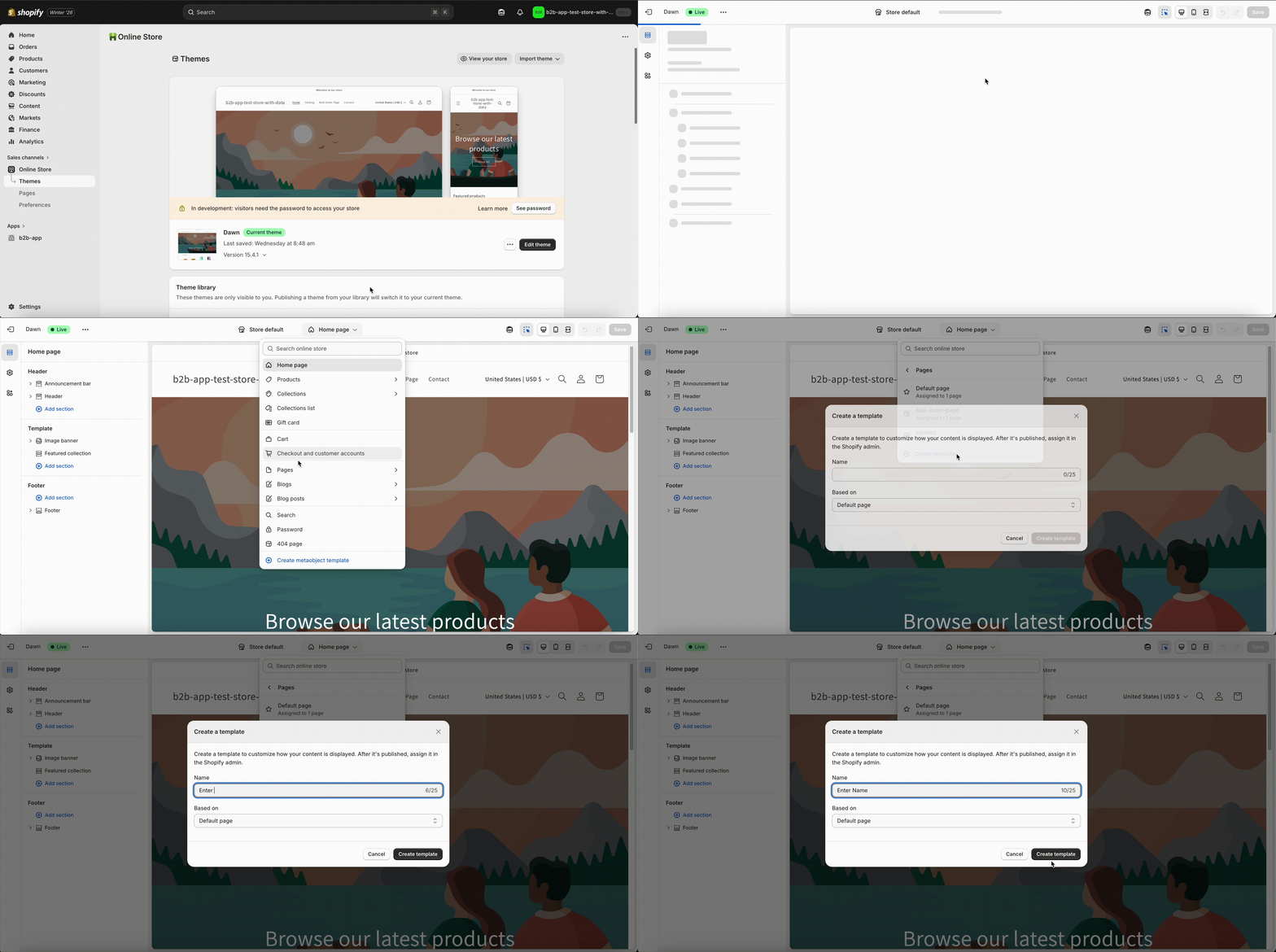
Step 1: Create a page template
Go to Online Store → Themes.
Click Edit theme next to your active theme.
Open the page selector at the top.
Select Pages → Create template.
Name the template (for example: Bulk order page).
Choose Default page as the base.
Click Create template and Save.
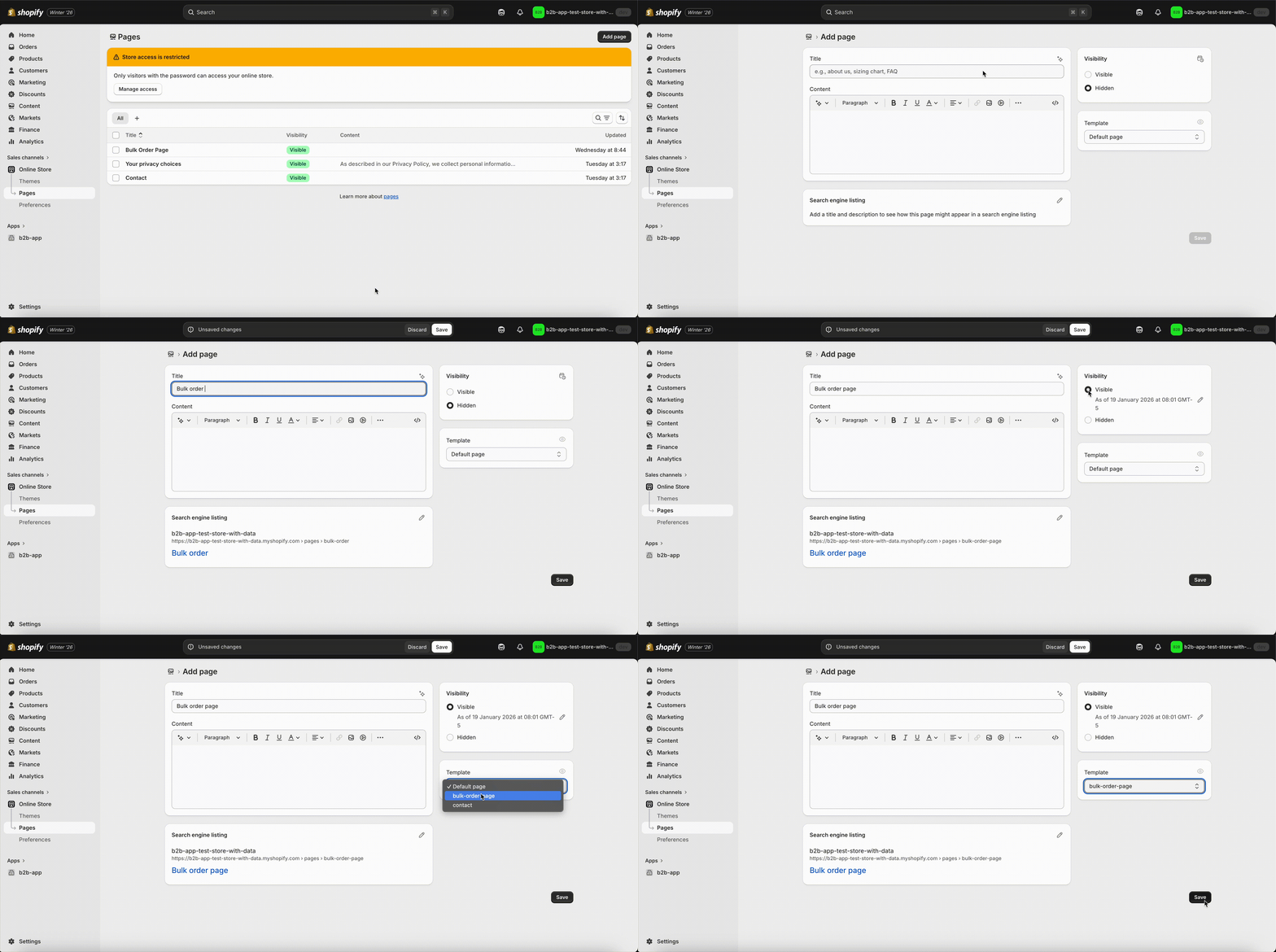
Step 2: Create a new page
Go to Online Store → Pages.
Click Add page.
Enter a page title (for example: Bulk order).
Leave the content empty or add a short description.
Assign the page template you just created.
Click Save.
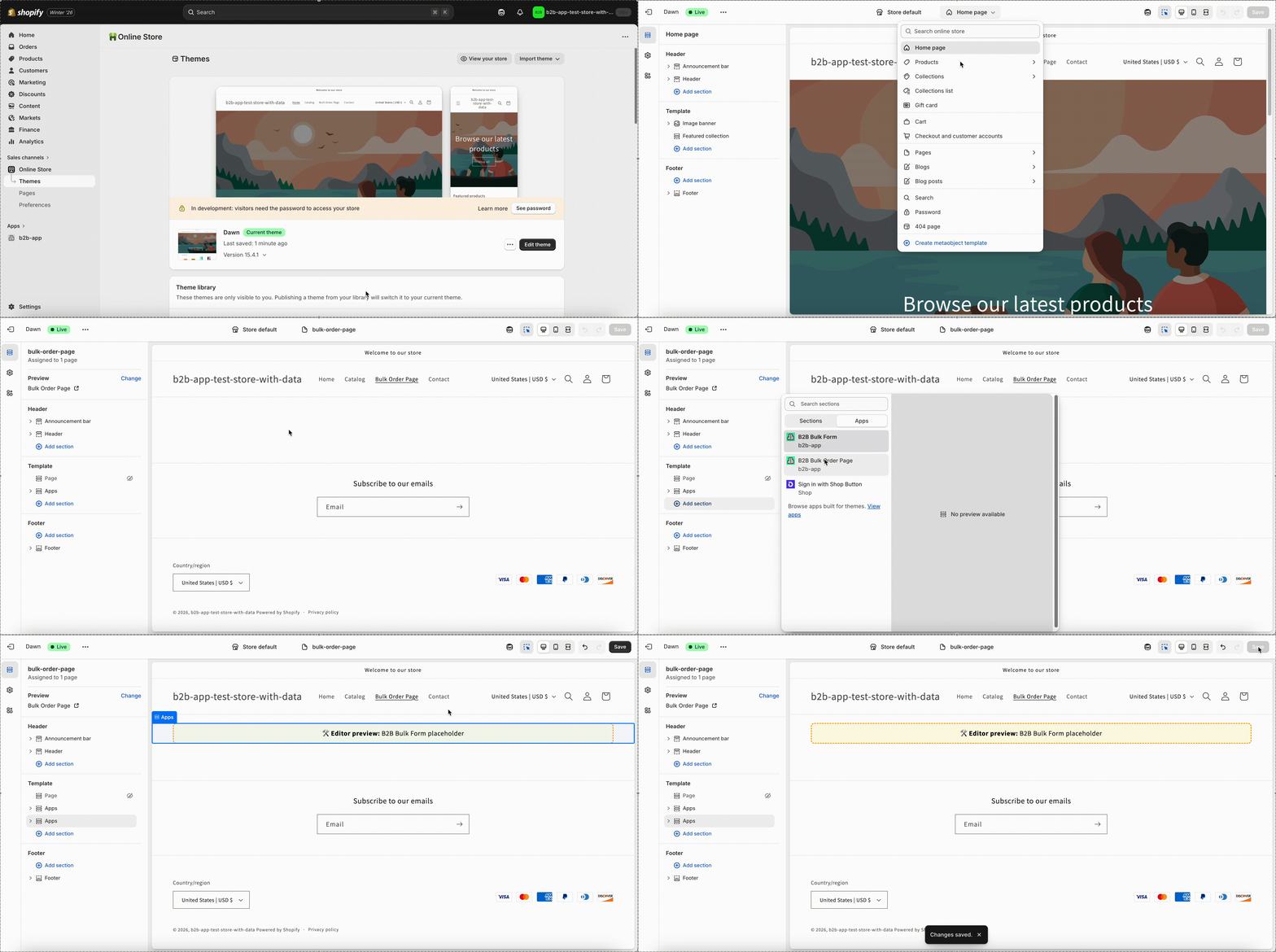
Step 3: Add the bulk order page extension
Go back to Online Store → Themes → Edit theme.
Open the page template you created.
In the left sidebar, open the Apps section.
Click Add block.
Select B2B Bulk Order Page.
Drag the block to the desired position.
Click Save.
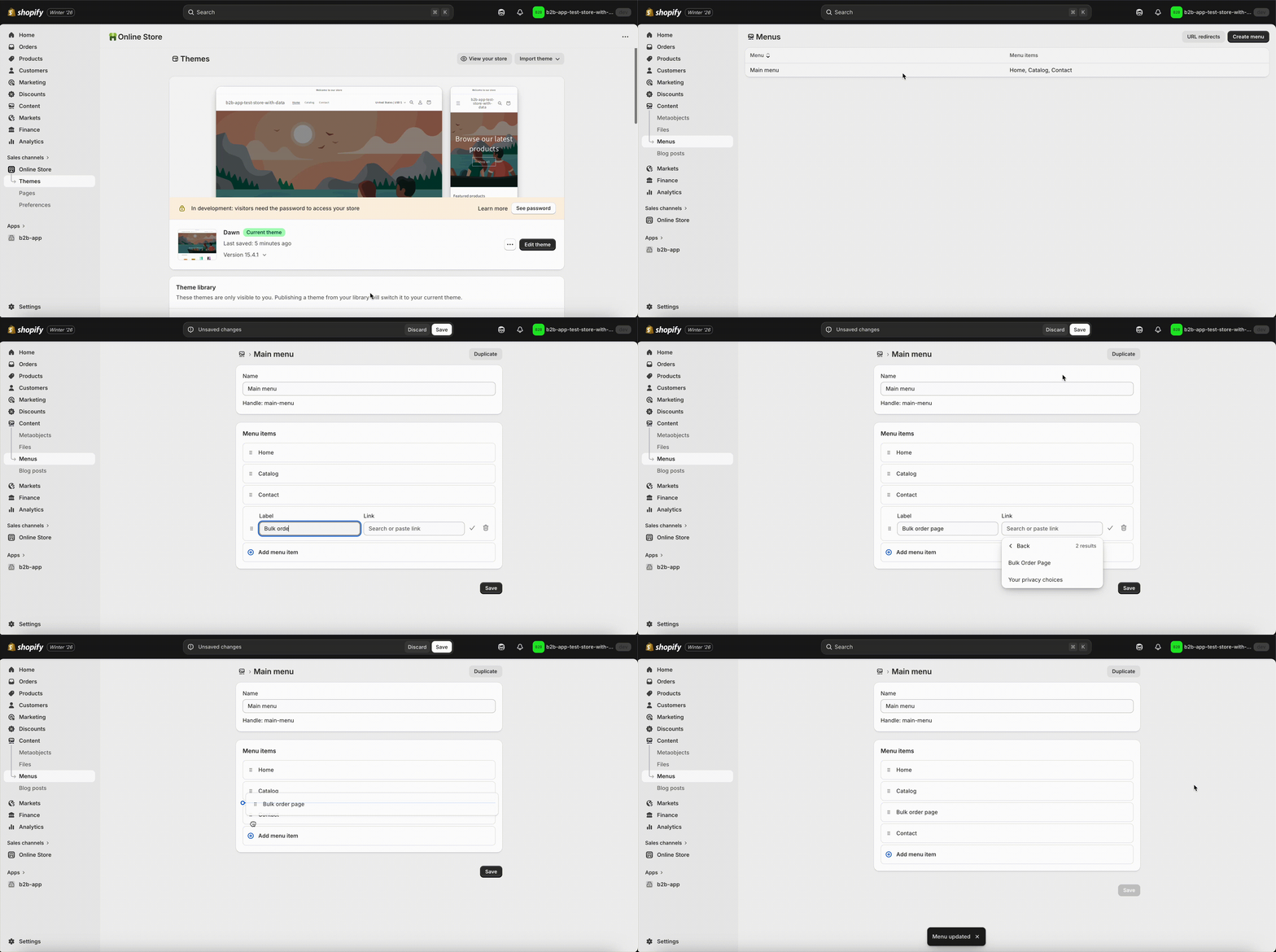
Step 4: Add the page to your menu (optional)
In the left sidebar, go to Content → Menus.
Open your main menu.
Click Add menu item.
Enter a name (for example: Bulk order).
Select the page you created.
Click Save.
Expected result
The bulk order page exists.
The bulk order form is visible on the page.
Customers can access the page from the menu (if added).
Common mistakes
Creating a page but not assigning the correct template.
Adding the app block to the wrong template.
Forgetting to save the theme.
The bulk order form is turned off in the app.