General
Written By Floris de Vries
Last updated 8 months ago
The General settings control how the calculator behaves on the storefront and how its data is stored in the order. These settings apply per calculator, not globally across the app.
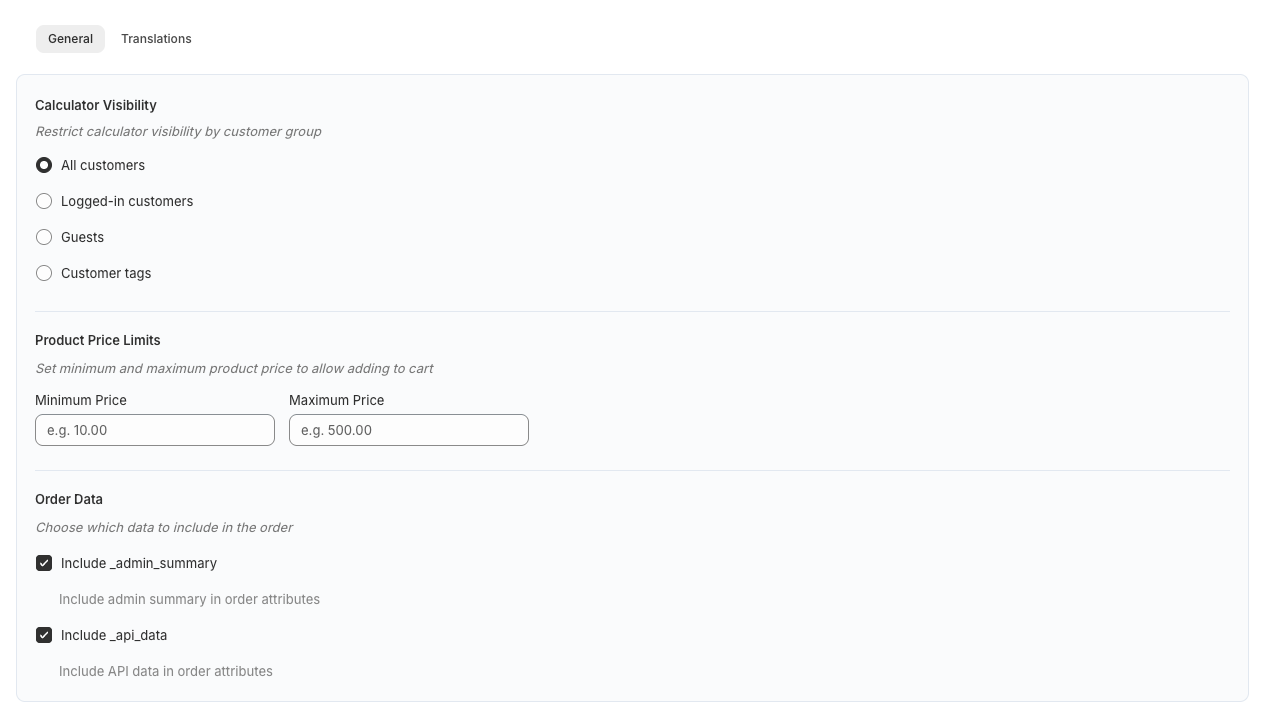
Calculator visibility
The Calculator visibility setting allows you to control who can see and use the calculator on the product page.
Available options
All customers
The calculator is visible to everyone visiting the product page.Logged-in customers
Only customers who are logged in can see and use the calculator.Guests
Only non-logged-in visitors can see the calculator.Customer tags
The calculator is shown only to customers with specific Shopify customer tags.
Use visibility rules when you want to:
Offer custom pricing to B2B customers
Hide calculators from retail customers
Show calculators only to approved users
Product price limits
The Product price limits allow you to define a minimum and/or maximum price that must be met before the product can be added to the cart.
Minimum price
Defines the lowest allowed calculated price.
If the calculated price is below this value, the product cannot be added to the cart.
Example:10.00 – Prevents orders below €10.
Maximum price
Defines the highest allowed calculated price.
If the calculated price exceeds this value, the product cannot be added to the cart.
Example:500.00 – Prevents extremely large or invalid orders.
💡 Tip:
Price limits are especially useful when using dynamic formulas or conditional pricing to prevent unexpected results.
Order data
The Order data settings determine which calculator data is saved to the Shopify order.
Include admin summary
When enabled, a human-readable summary of the calculator input is added to the order attributes.
This summary is intended for:
Admins
Fulfillment teams
Customer service
It provides a clear overview of the customer’s selections.
Include API data
When enabled, the raw calculator data (structured values and keys) is added to the order attributes.
This is useful for:
API integrations
Custom fulfillment workflows
External systems or automations
💡 Tip:
Enable Admin summary for clarity and API data for technical integrations.