Installation – Checkout Page
Written By Floris de Vries
Last updated 8 months ago
To enable VAT number validation in the checkout, you need to customize the Checkout page of your Shopify Plus store using Checkout UI Extensions.
Follow the steps below to add the EU VAT Validation block to the correct location in checkout.
Step-by-step installation
1. Open Checkout customization
In your Shopify admin:
Go to Settings → Checkout
Under Configurations, click Customize next to the checkout profile you want to edit
This opens the Shopify Checkout Editor.
2. Add the EU VAT Validation app block
In the checkout editor:
Click Add app block
Select EU VAT Validation
Enable Allow app to block checkout
⚠️ Important
Enabling Allow app to block checkout ensures that VAT numbers are validated before checkout completion.
3. Save and publish
Click Save to apply the changes.
The VAT number field is now enabled in checkout.
Where to place the app block
The correct placement depends on your checkout layout and product type.
One-page checkout layout (physical goods)
If your store uses one-page checkout and sells physical products:
Place the app block in the Delivery section
Inside Delivery address
This ensures the VAT field is shown alongside address details.

Three-page checkout layout (physical goods)
If your store uses three-page checkout:
Place the app block on the Information page
In the Contact section
Inside Shipping address
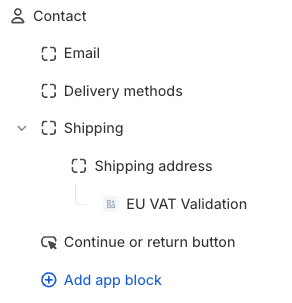
Selling digital goods (or mixed carts)
When selling digital products, customers purchasing only digital items do not see shipping fields in checkout.
They are only asked for billing information.
To ensure VAT validation is always available, you must add a second app block.
One-page checkout – digital goods
Add an additional EU VAT Validation app block:
In the Payment section
Just below the Remember me block
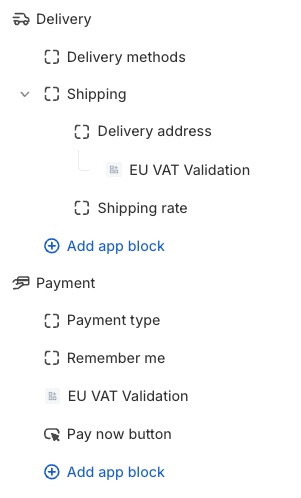
Three-page checkout – digital goods
Add an additional EU VAT Validation app block:
On the Information page
In the Contact section
Just below the Shipping group
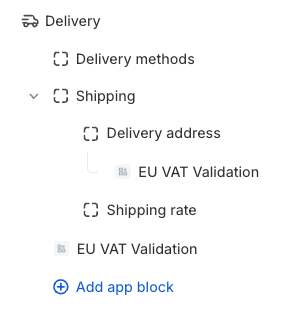
Business customers & address fields
For B2B customers, the VAT number field should not be embedded directly inside address input fields.
Best practice:
Place the VAT validation block outside the address input group
This avoids conflicts with:
Company address validation
Billing vs shipping logic
Shopify B2B company profiles
The placements described above already follow this best practice.
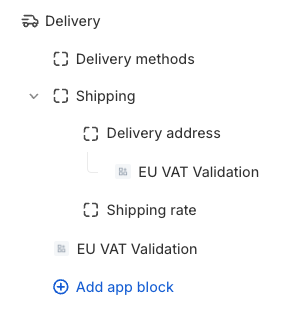
Final verification
After installation, test the setup:
Start a checkout
Use an EU address
Enter a valid EU VAT number
Confirm:
VAT is validated successfully
VAT is removed immediately
Checkout cannot be completed without validation (if blocking is enabled)
Summary
One-page and three-page checkout require different placement
Digital goods require an additional app block
VAT validation must be placed outside address input fields for B2B
Always enable Allow app to block checkout if validation is required