Place tables with theme blocks
Add Size chart, Specs, Compare, Tabbed, or Us vs Them blocks in the theme editor.
Written By Floris de Vries
Last updated About 2 months ago
Theme app blocks place tables in exact positions on product, collection, page, and other templates.
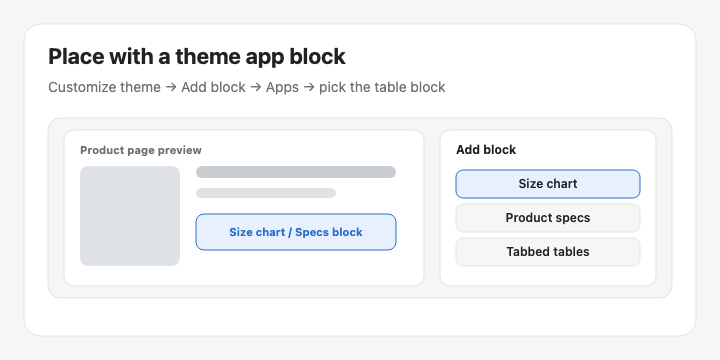
Available blocks
Size chart — visibility-based Size charts
Product specs — visibility-based Specs tables
Compare button — optional manual Compare placement
Tabbed tables — pick a specific Tabbed table
Us vs Them — pick a specific Us vs Them table
How to add a block
Go to Online Store → Themes → Customize.
Open the template (usually Products → Default product).
Click Add block in the section where the table should appear.
Open Apps and choose the block you need.
For Tabbed / Us vs Them, select the table in the block settings.
Click Save.
Recommended: Place Size chart or Specs near the price / buy buttons so shoppers see them while deciding.
Was this helpful?
Still need help? Ask the team